
Counties/Regions & DeLorme
Cachly tracks your progress county by county and DeLorme page by page — with maps that show exactly where you still need a find.
Start Here: Import Your My Finds
When importing, set Only My Finds to match your own finds (turn it off to include everyone in the file), Clear on Import to replace existing data, and Dataset Type to the correct country so the regions line up. You can also import from an Offline List or another file source with the same options.
Counties / Regions PRO
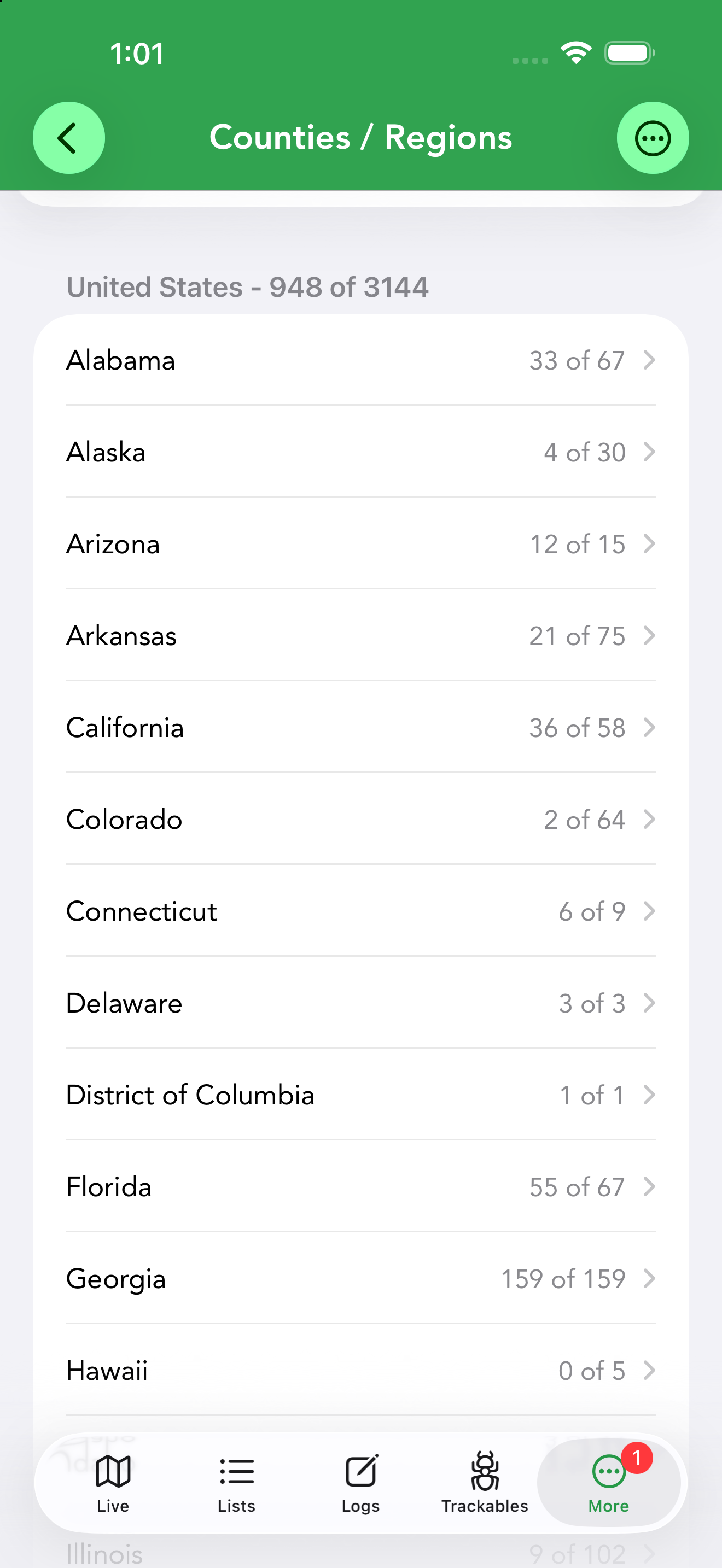
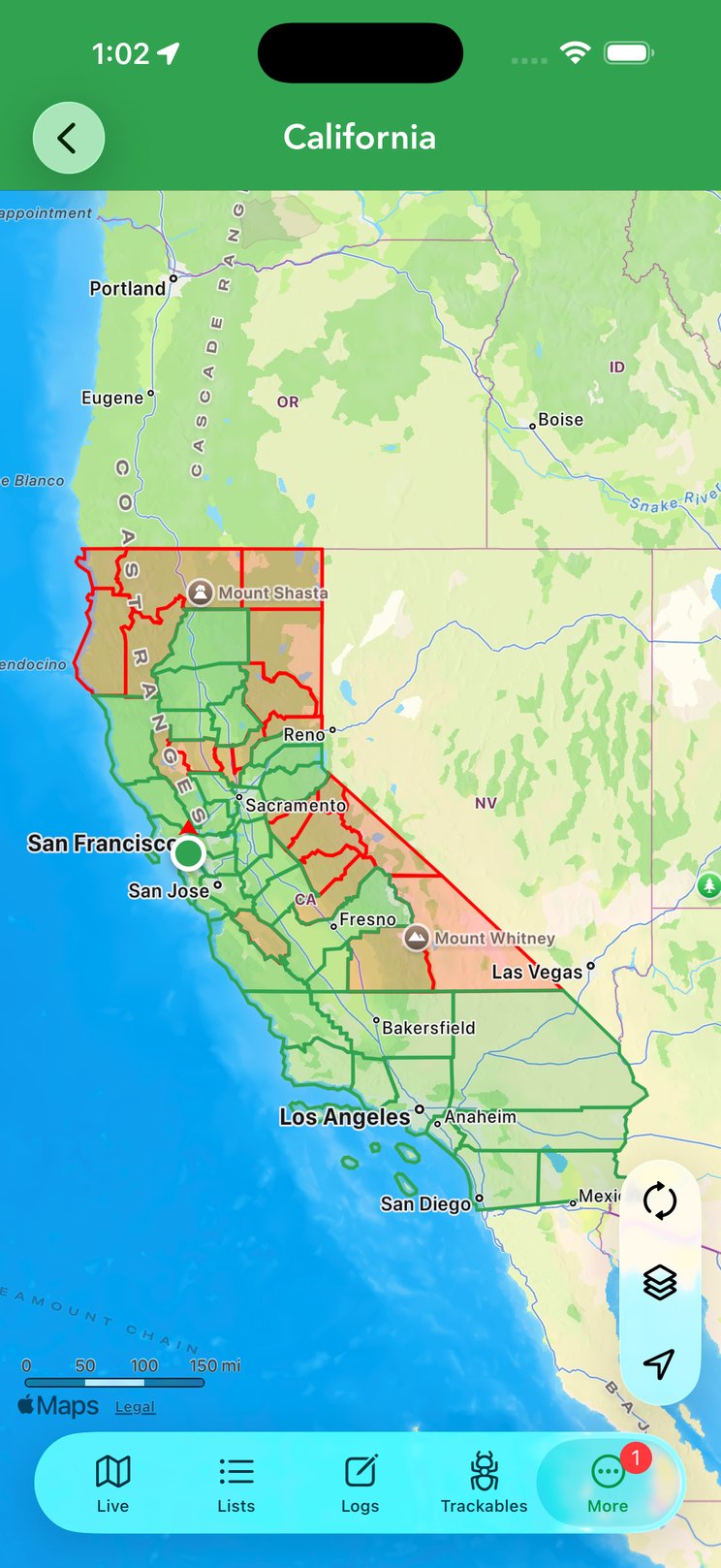
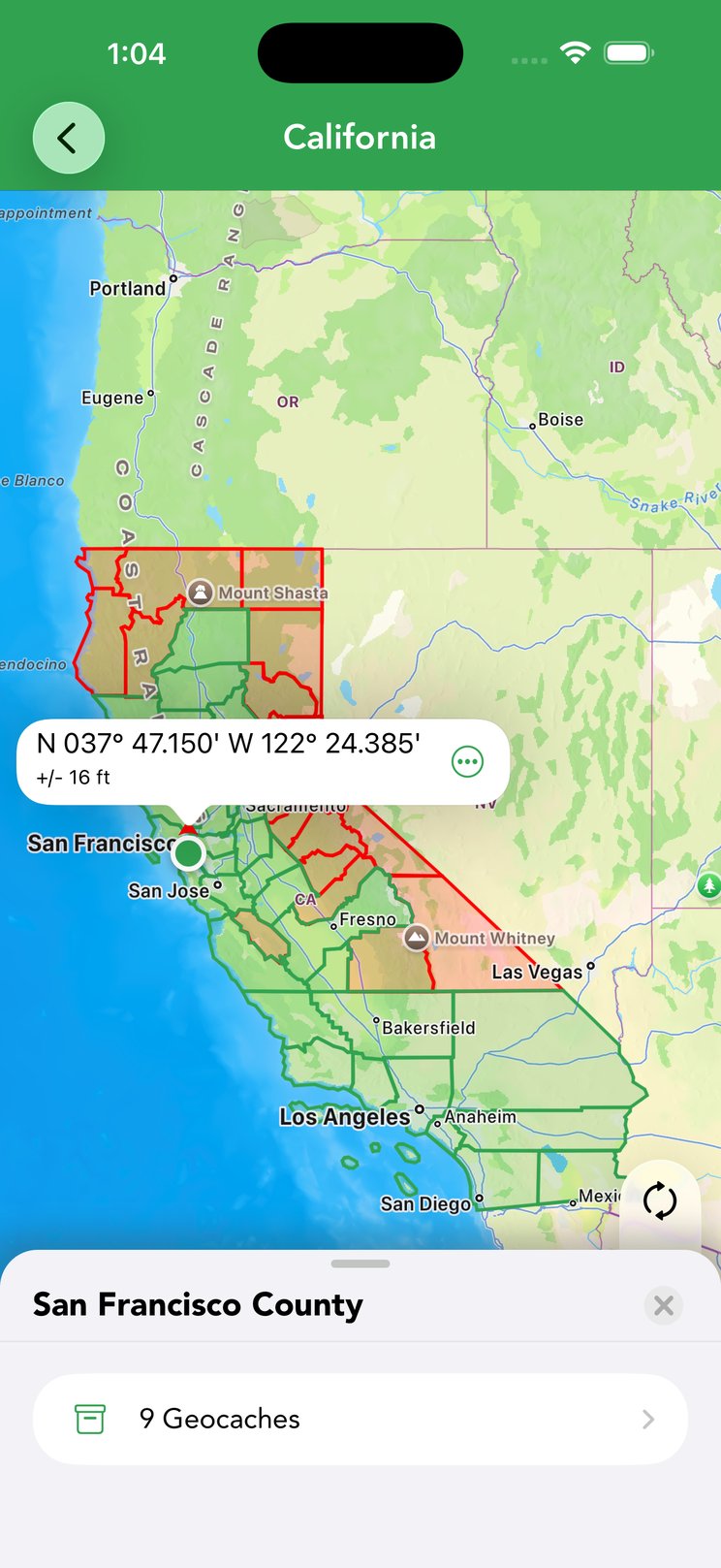
For county-challenge cachers, Counties / Regions tracks your finds at the county level. It requires Cachly 8.0 or later with a Pro subscription, and county-level data is available for six countries: Australia, Austria, France, Germany, the United Kingdom and the United States. The screen starts empty until you Import Data; choose a source: Offline List, Dropbox, Google Drive, Files/iCloud or Other. Once imported you get a country-level progress header (say, 948 of 3144) above a row per state or region, each showing how many of its counties you’ve found. Open a state for its county list — each county with your find count — or tap View All to see the state as a map: found counties shaded green, missing ones red. Tap a green county to open its panel and view the geocaches you found there, right on the map. You can also load live caches while browsing the county map, and any new find in a county you hadn’t completed turns that county green. Imported caches can be removed one at a time: swipe left on a cache in the county’s list, or long-press it (in the list or on the map) and choose Delete. If the cache is also in one of your offline lists the action reads Remove and only takes it out of the county data, leaving your list copy untouched; deleting a county’s last cache flips it back to red. The … menu lets you Import Data again or Delete Current Data, and you can filter any offline list by County (see the filter table).
Seed it with your My Finds import. After that, Found-it logs you create in Cachly are counted as county finds automatically; to count a find you logged elsewhere, open the cache, tap the add-to-lists icon and choose Add to County Finds. You can turn off the automatic counting in Settings › Cachly Pro.
DeLorme Grid PRO
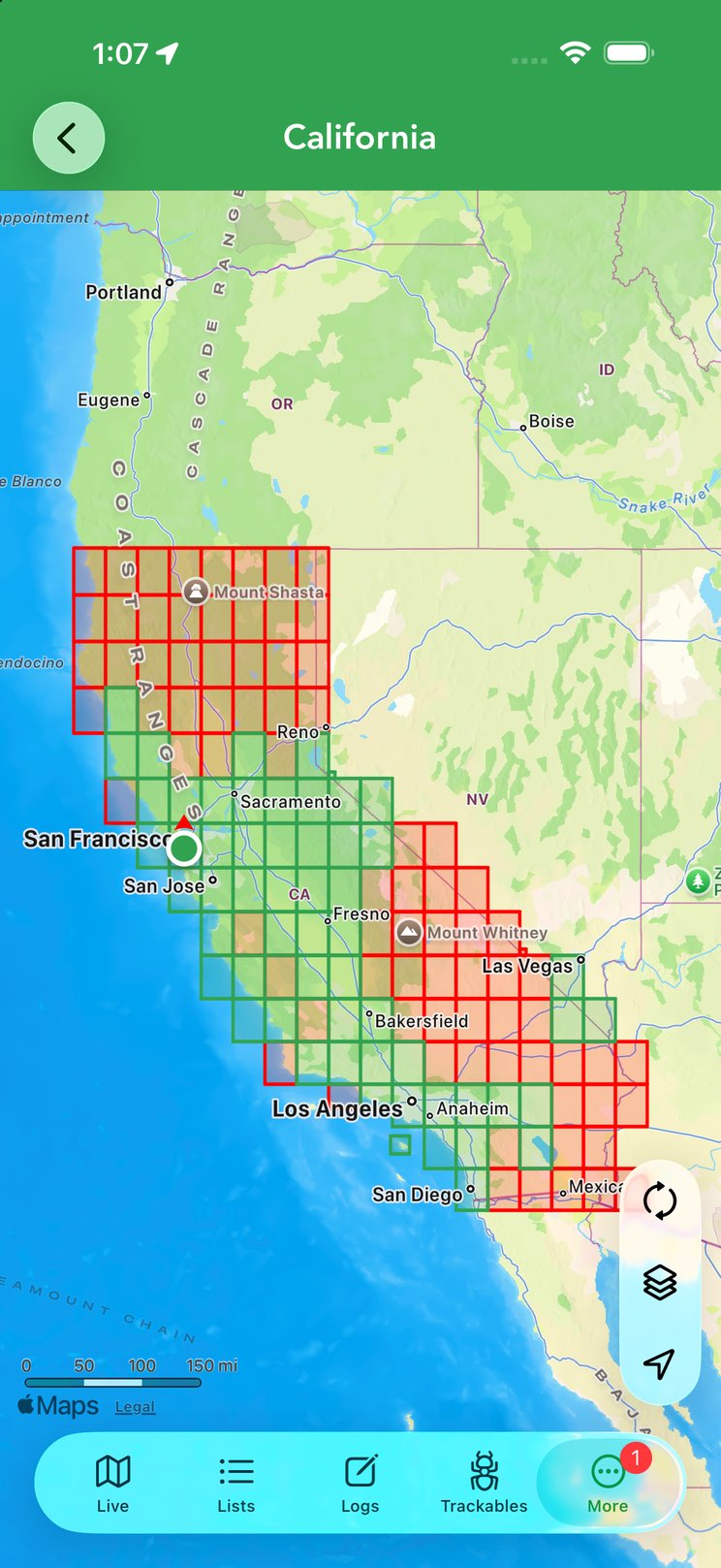
The DeLorme Grid tracks your finds by DeLorme atlas grid page, for grid-challenge caching across US states and parts of Canada. It works just like Counties / Regions: seed it with the same My Finds import (the Only My Finds and Clear on Import options apply here too), then browse per-state atlas pages with find counts, or View All to see the page grid drawn over the state map — green pages found, red still needed. Tapping a green page shows the geocaches you’ve found on it. You can favorite individual pages, load live caches while viewing a page, and later finds logged in Cachly register automatically. Imported caches can be deleted here too — swipe left on a cache in a page’s list, or long-press and choose Delete, exactly as in Counties / Regions.