
Lists & Offline Lists
Lists keep caches organized; offline lists take it further by downloading caches (and their photos) to your device so you can cache with no signal.
Kinds of Lists
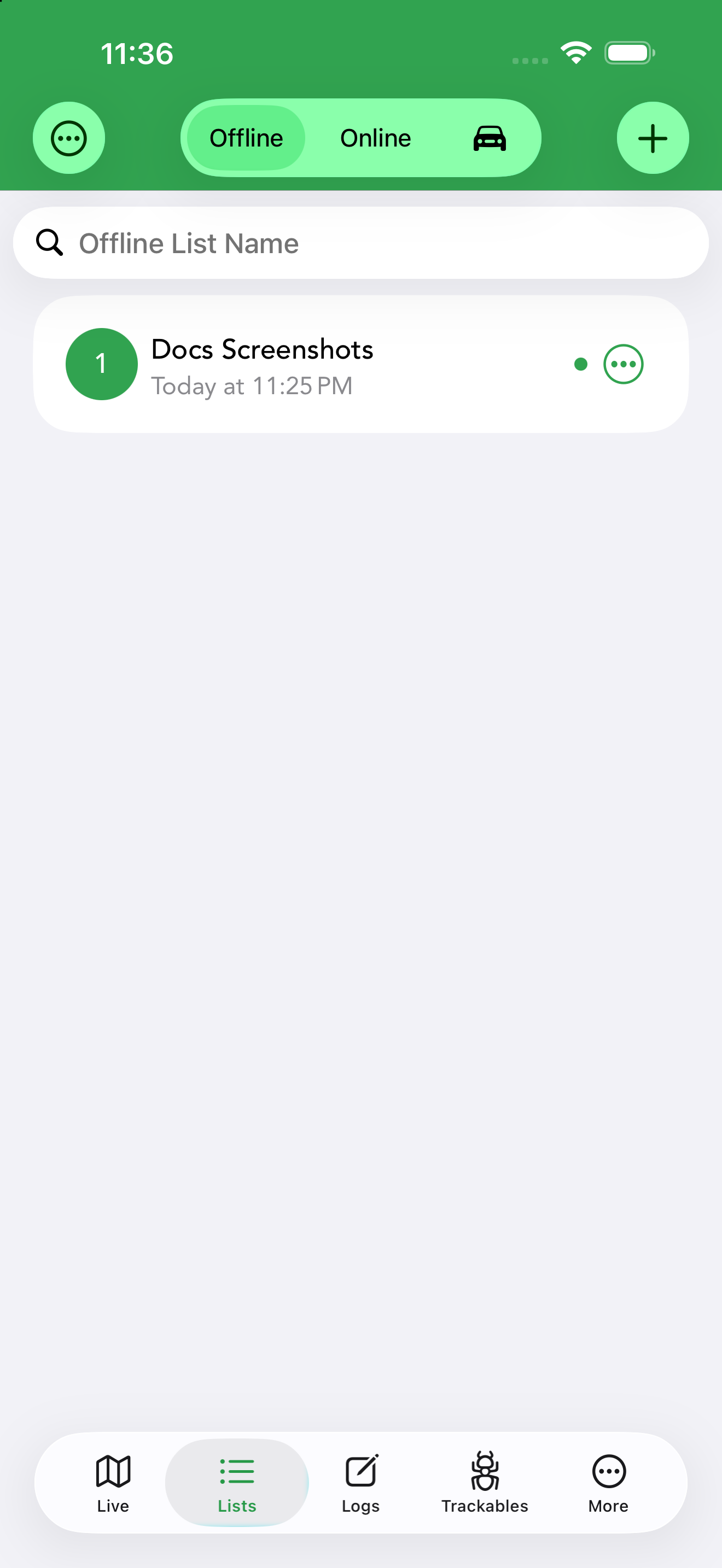
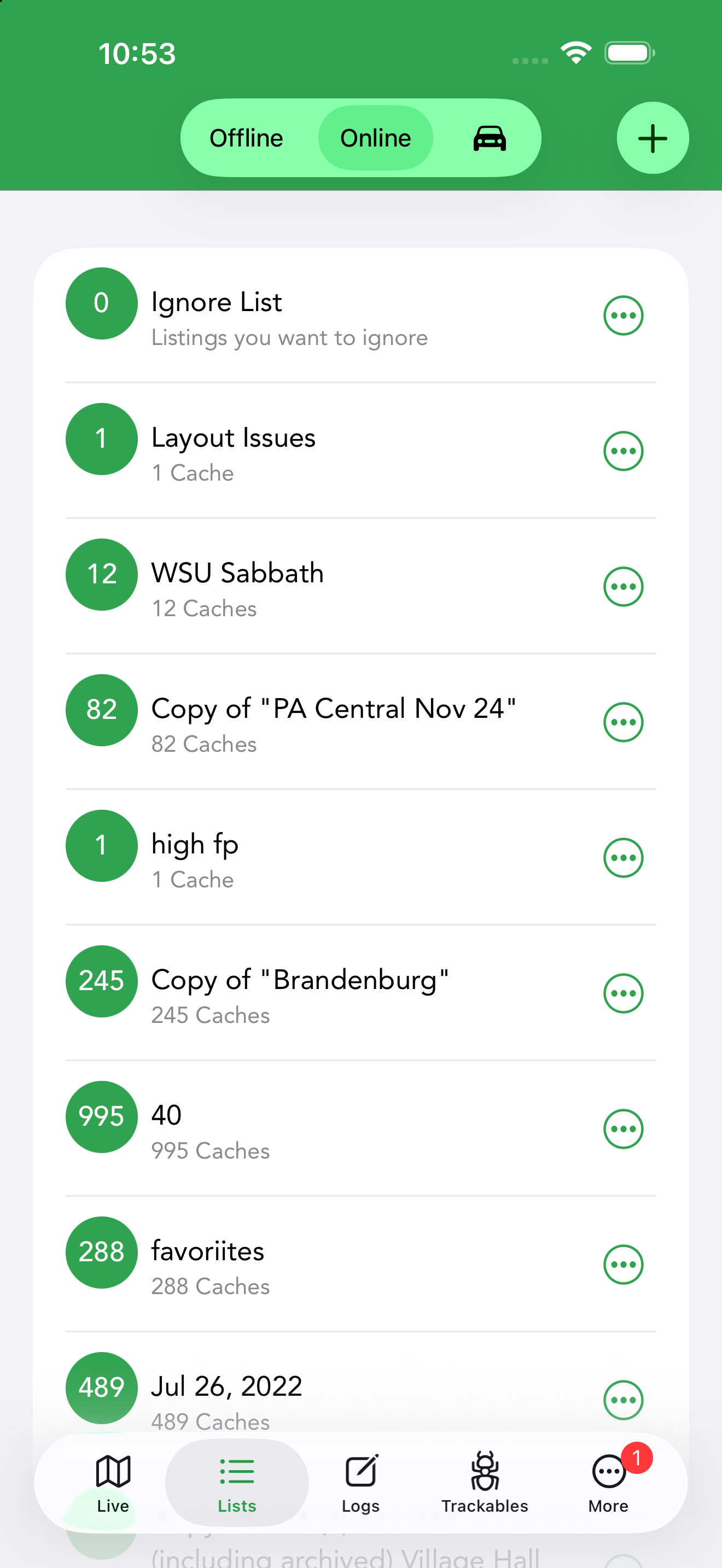
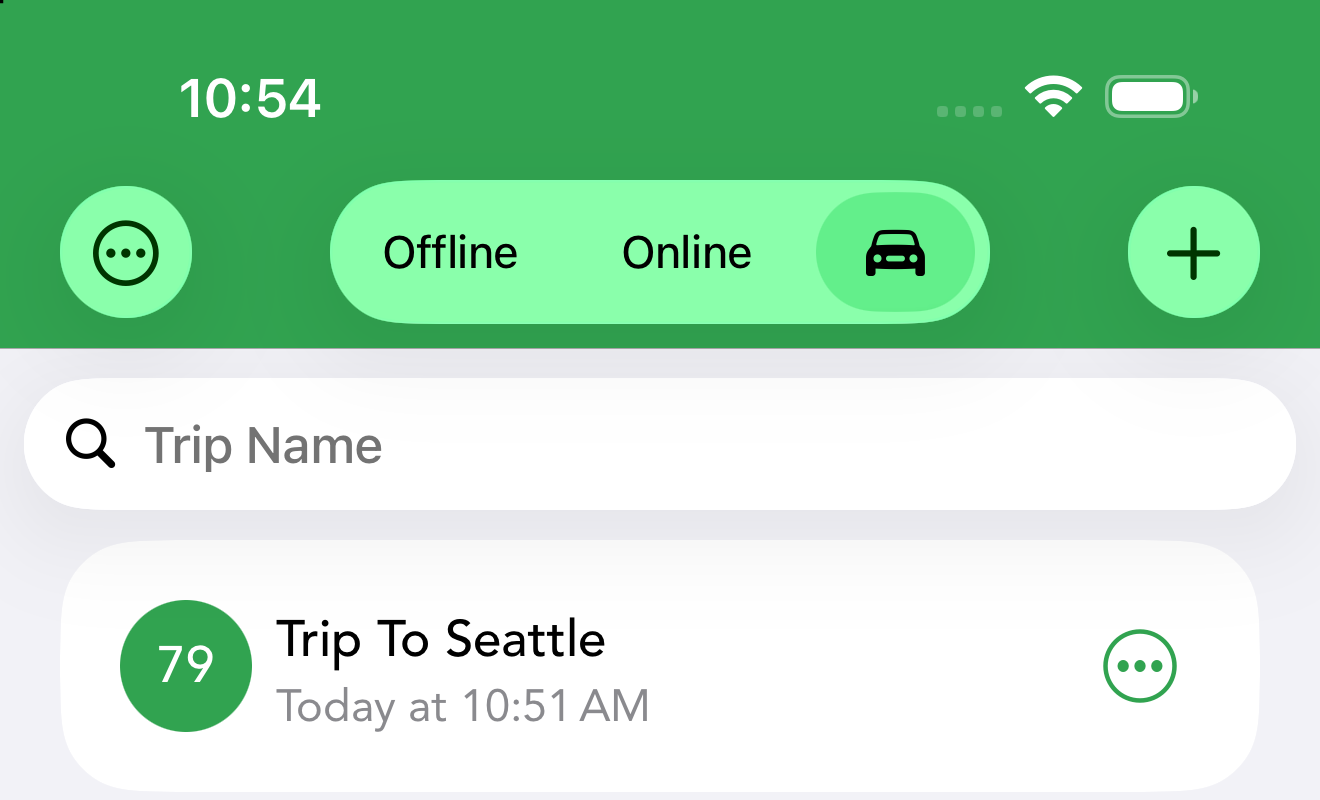
The Lists tab is split into three segments across the top:
- Offline (the default) — lists whose caches are downloaded to your device for full offline access. Each row shows the cache count, the list name and when it was last updated (or created, if it has never been updated), with the list’s description above the date if you have given it one; a small green dot marks the list that is currently loaded on the map. The search field above filters your lists by name.
- Online — the bookmark lists stored on your geocaching.com account, including your Ignore List, each with its cache count and a per-row … menu. A small icon at the start of each row’s subtitle shows the list’s visibility — a globe for public, a link for shareable-by-link, a padlock for private — matching what you chose when creating or editing the list. Online lists require a geocaching.com Premium membership and stay in sync with the service.
- Trips (the car icon) — trip lists for planning a route of caches, e.g. “Trip To Seattle”. Trips are the lists that appear in CarPlay PRO, so you can browse and navigate to their caches from your car’s screen.
Swipe left on any list row to Delete it.
Creating a List
Tap + at the top of the Lists tab. For an offline list you give it a title, an optional description and can enable Show in CarPlay, which makes the list browsable from your car’s screen in CarPlay PRO. The description is free text for anything worth remembering about the list — what a trip is for, which caches still need attention, planning details — and is shown under the list name, above the date. To change a list’s title or description later, tap its ⋯ button and choose Edit. An online list is created with a title and optional description and is saved straight to your geocaching.com account.
Adding Caches to a List
There are two main ways to fill a list:
- One cache at a time — on a cache’s detail screen, tap the + button and choose Add to List (the same menu offers Watch and Ignore).
- In bulk from the map — open the map’s … menu, choose Add to List, then pick the scope: All Caches, Visible Caches or Highlighted Caches.
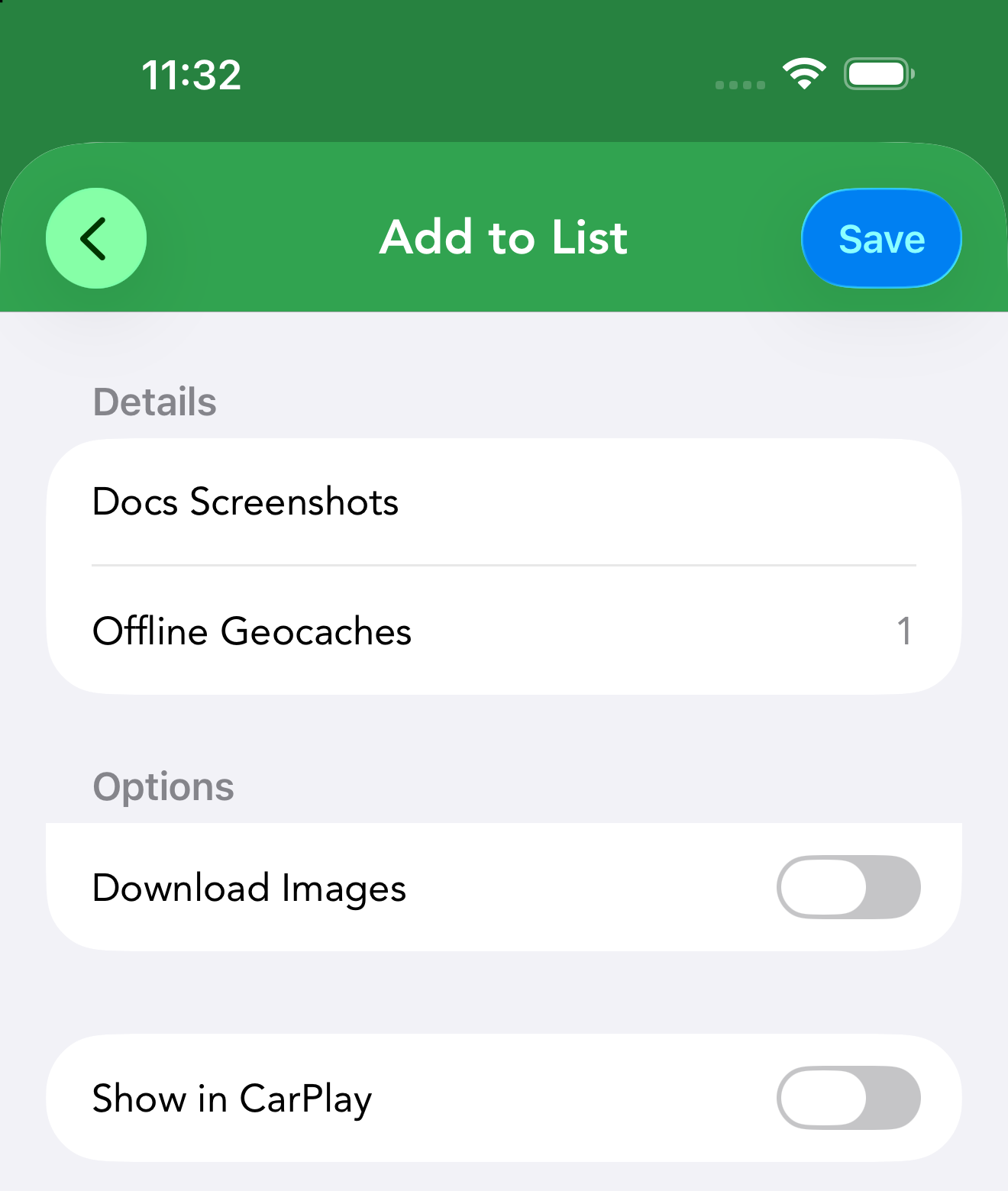
Either way, you then pick the destination list and land on the Add to List screen. The Details section names the list and shows how many Offline Geocaches will be saved. Under Options, choose how much to store:
- Lite Cache Data — basic cache data without logs. Faster and smaller, and the default.
- Full Cache Data — all cache data including logs.
- Download Images — also store the caches’ photos. This is only available with Full Cache Data; when saving lite cache data, images cannot be downloaded.
Turn on Show in CarPlay if you want the list to appear in CarPlay, then tap Save.
If you get an email notifying you that a new cache has been published, long-press the cache’s link in the email and copy it, then paste the URL into the search field on the Live tab. Cachly loads the cache so you can open its detail screen and Add to List like any other.
Offline Lists
An offline list stores cache information locally — descriptions, hints, logs, waypoints and (on demand) photos — so everything is available with no internet, perfect for trips without signal. There are three ways to create one:
- Add search results from the Live tab.
- Import an existing online list or pocket query from geocaching.com.
- Import a GPX file received by email or cloud storage.
Browse an offline list on the map using the Offline Lists view type.
Map Mode and List Mode
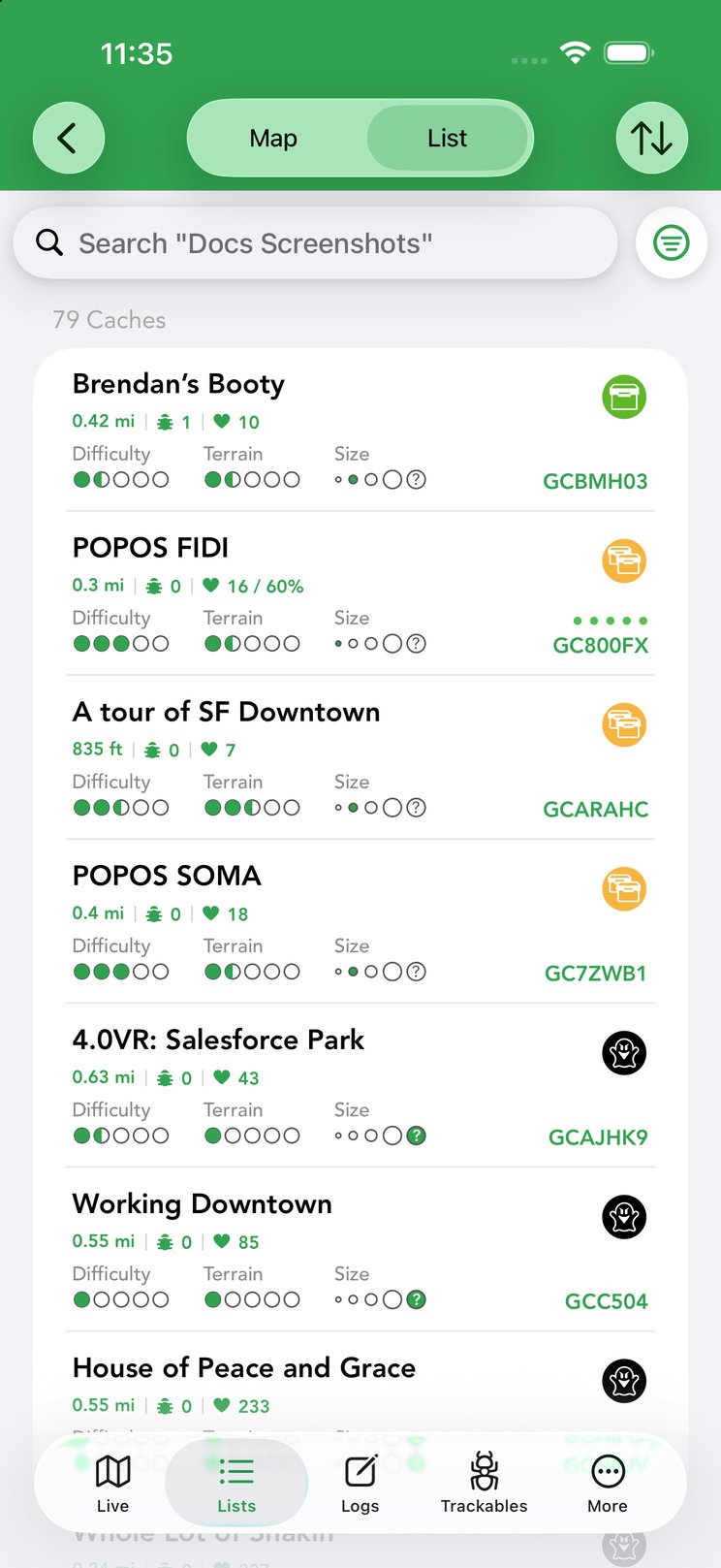
Opening an offline list gives you the same two views as the Live tab. Map mode shows the list’s caches as pins with the full map toolset, scoped to just that list. List mode shows a cache-count heading and one row per cache with its distance, D/T, size and GC code.
In list mode, the sort button (up/down arrows) opens the same sort sheet as the live cache list: choose Ascending or Descending, then a sort type — Cache Type, Container Size, Date Found, Date Last Found, Date Placed, Difficulty, Distance, FTF, Favorite Count, Favorite Percentage, Found, GC Code, Highlight Color, Highlighted, Name, Premium, Terrain and Trackable Count.
If the list was saved with Full Cache Data, each row can show up to five colored dots summarizing the cache’s recent log activity — green for a Found, gray for a Write Note, red for a DNF and orange for a needs-maintenance log. (Lite cache data doesn’t include logs, so no dots are shown.) Long-press any row for quick actions: Highlight, Add to List, Watch, Ignore, Copy Cache Code, Copy Coordinates and Show on Map.
Managing an Offline List
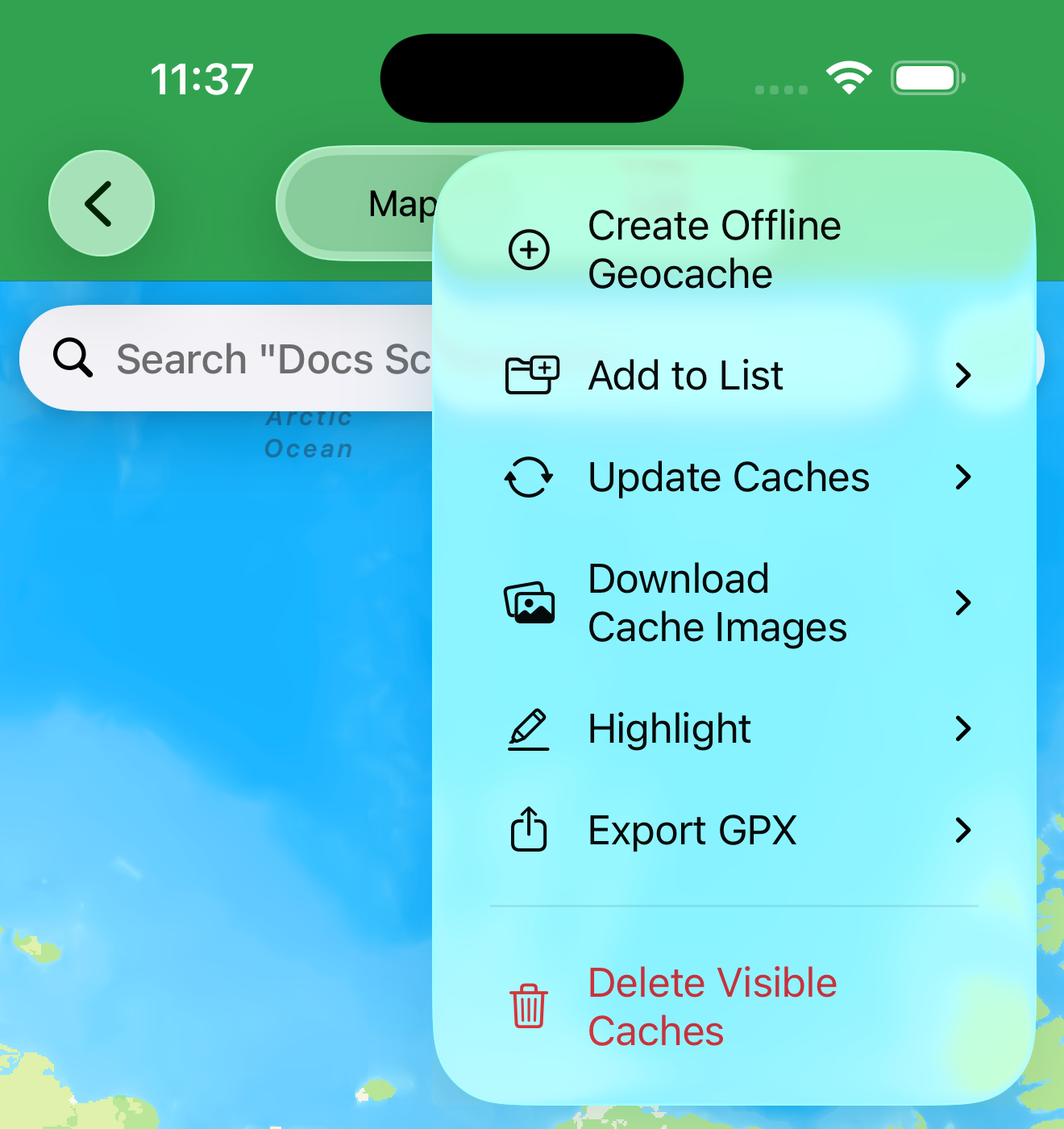
In map mode, the … menu at the top right manages the whole list:
- Create Offline Geocache — add a cache of your own to the list.
- Add to List — copy caches into another list (All / Visible / Highlighted Caches).
- Update Caches — refresh the stored cache data from geocaching.com.
- Download Cache Images — fetch photos for caches that were saved without them.
- Highlight — apply a highlight color to the caches.
- Export GPX — export the caches as a GPX file.
- Delete Visible Caches — remove the currently visible caches from the list.
List Membership
At the bottom of a cache’s detail screen, List Membership shows when the cache was last saved offline and which offline lists contain it. When a cache is in several lists you can use Edit (or swipe left) to remove it from specific lists while keeping it in the one you opened it from. This applies to caches stored offline.
Filtering Offline Lists
Offline lists have their own filtering system, far deeper than live search: tap the filter button in list view to stack multiple filters, invert them, and save whole sets as templates. The walkthrough and the complete table of filter options are on Search & Filters.